 Rotating Residential Proxies
 Rotating Datacenter Proxies
 Static Residential Proxies
 Static Datacenter Proxies
 Unlimited Rotating Residential Proxies
 Proxy Solutions
 United States Proxies
 Canada Proxies
 United Kingdom Proxies
 France Proxies
 Germany Proxies
 Singapore Proxies
 Japan Proxies
 Australia Proxies
 Vietnam Proxies
 Philippines Proxies
 India Proxies
 Mexico Proxies
 View All Regions
 Social Media
 E-commerce
 Data Aggregation
 Ad Verification
 Artificial Intelligence
 Market Research
 Integration Tools
 Contact Us
 FAQ
FAQ
 Documentation
 Tutorials
 SDK
SDK
 Affiliate Program
 Become an Agent
 Partners
 Blog
Blog


Proxy Connection Refused: Check Port, Firewall, and Protocol Scope

Proxy Connection Refused? A Port, Firewall, and Protocol Checklist
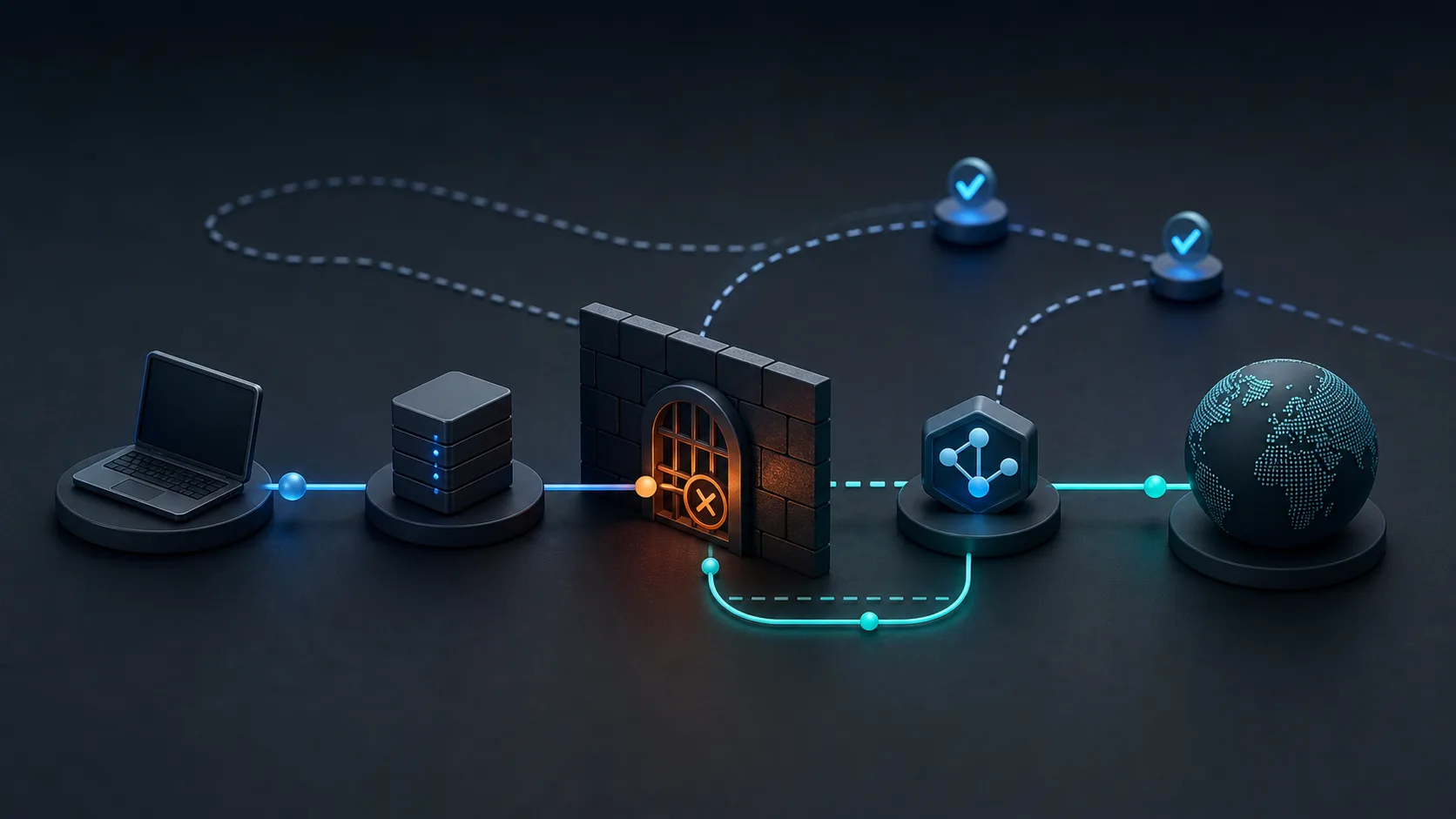
A proxy connection refused error is different from a slow proxy, a blocked target page, or a bad exit IP. It usually means the connection was rejected before the request could become a normal proxy session. Replacing the IP too early can hide the real cause and create the same failure on the next endpoint.
Use this checklist to separate port reachability, firewall rules, protocol scope, client configuration, and provider-side access limits. The goal is to find where the connection stops before you rotate routes, edit account workflows, or escalate the issue as proxy quality.
First classify the refusal
Start with the exact error text and where it appears. A command-line client may say “connection refused.” A browser extension may show a generic proxy failure. A script may wrap the same refusal inside a library exception. Record the tool, endpoint, port, protocol, network, and timestamp before changing anything.
| Signal | What it suggests | First diagnostic step |
|---|---|---|
| Immediate connection refused | Closed port, blocked port, or wrong service | Test host and port reachability from the same machine |
| Timeout instead of refusal | Network path, DNS, firewall, or routing delay | Compare with a SOCKS5 timeout check |
| 407 or authentication required | Credentials or access rule reached the proxy service | Move to authentication and account-scope checks |
| Works on one device only | Local firewall, NAT, allowlist, or environment difference | Compare source host, network, and client settings |
Step 1: verify host and port before judging the IP
Confirm that the host is spelled correctly, the port belongs to the proxy type you intend to use, and the client is sending traffic to that exact endpoint. A refused connection can happen when a user copies the right host but the wrong port group, or when an old environment variable points a script to a stale endpoint.
Test from the same machine that runs the workflow. If a port test fails from the server but works from your laptop, the problem is not proven to be the proxy IP. It may be a local firewall, cloud security group, outbound network rule, or corporate network policy. Record this in a proxy troubleshooting log so later tests do not mix environments.
Step 2: match protocol to the port
HTTP, HTTPS CONNECT, SOCKS5, and SOCKS5 with remote DNS handling are not interchangeable labels. A client that sends a SOCKS5 handshake to an HTTP-only port may fail before authentication. A browser extension that silently changes the scheme can create the same symptom even when the saved credentials are correct.
Use one clean test for each intended protocol, and do not change credentials, region, and endpoint at the same time. If the failure sits near protocol selection, compare it with your normal HTTP vs SOCKS5 proxy decision process and a lower-level CONNECT timeout check before rotating IPs.
Step 3: check local firewall and outbound rules
A firewall can reject outbound traffic to a proxy port even when web browsing still works. This is common on cloud servers, CI runners, managed desktops, school or office networks, and containers running inside stricter host policies. Check whether the failing process is allowed to open outbound connections to the required host and port.
Do not loosen firewall rules broadly just to make one test pass. Limit the check to the specific proxy host, port, protocol, source host, and workflow owner. For shared environments, document the allowed path in an access policy checklist so another teammate does not later treat the rule as accidental exposure.
Step 4: confirm provider-side scope
Some ports apply only to specific proxy types, plans, regions, sub-accounts, or authentication modes. A refused connection can happen when the endpoint is valid but outside the scope assigned to the account or task. Check the dashboard fields that decide whether this endpoint should accept your connection at all.
| Field | Question to answer | Safe action |
|---|---|---|
| Proxy type | Is this port for HTTP, HTTPS CONNECT, SOCKS5, static, or rotating access? | Retest with the matching client scheme only |
| Account scope | Is the endpoint assigned to this account, sub-account, token, or team seat? | Use the correct scope instead of guessing credentials |
| Region or pool | Does the port belong to the selected region or pool? | Switch only one field, then retest |
| Access method | Does the workflow use credentials, IP allowlisting, or both? | Keep authentication and source-IP checks separate |
| Connection state | Are old pooled connections still being reused? | Restart the client and test a fresh connection |
Step 5: decide whether to retry, change settings, or fail over
Retry only after you know what changed. If the port was wrong, correct the port and retest once. If the firewall blocked the route, fix the specific outbound rule or move the workflow to an approved network. If the protocol was wrong, update the client scheme and retest with the same endpoint. If the provider-side scope does not include that port, use an assigned endpoint instead.
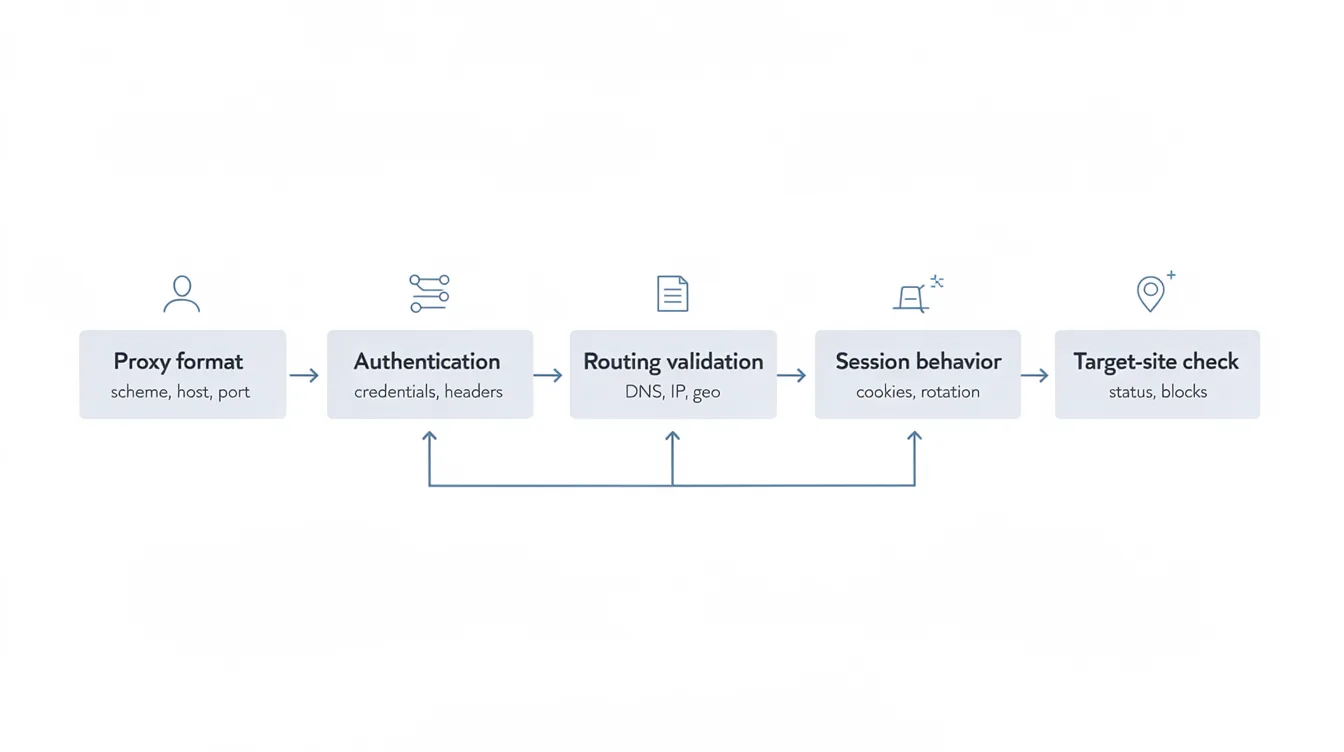
If these checks pass and the route still fails inconsistently, then it is reasonable to move into broader proxy failover checks. Keep the order strict: refused connection first, timeout second, authentication third, proxy health fourth. Otherwise, every retry may create new noise without identifying the actual stop point.
A compact refusal checklist
- Record the exact client, host, port, protocol, network, timestamp, and error string.
- Test reachability from the same machine that runs the workflow, not from a different laptop.
- Confirm the port belongs to the intended protocol and proxy type.
- Check local firewall, cloud security group, container egress, VPN, and corporate network rules.
- Confirm account, sub-account, plan, pool, and access-method scope.
- Restart clients with connection pools before retesting.
- Change one field at a time and record the pass or fail result.
A refused proxy connection is useful information when it is handled precisely. It tells you the session may not have reached normal proxy authentication or target routing yet. Treat the refusal as a port, firewall, protocol, or scope problem first. Once those fields are stable, broader proxy health and route decisions become much easier to trust.