Discord Proxy Setup Guide: Choose, Configure & Fix
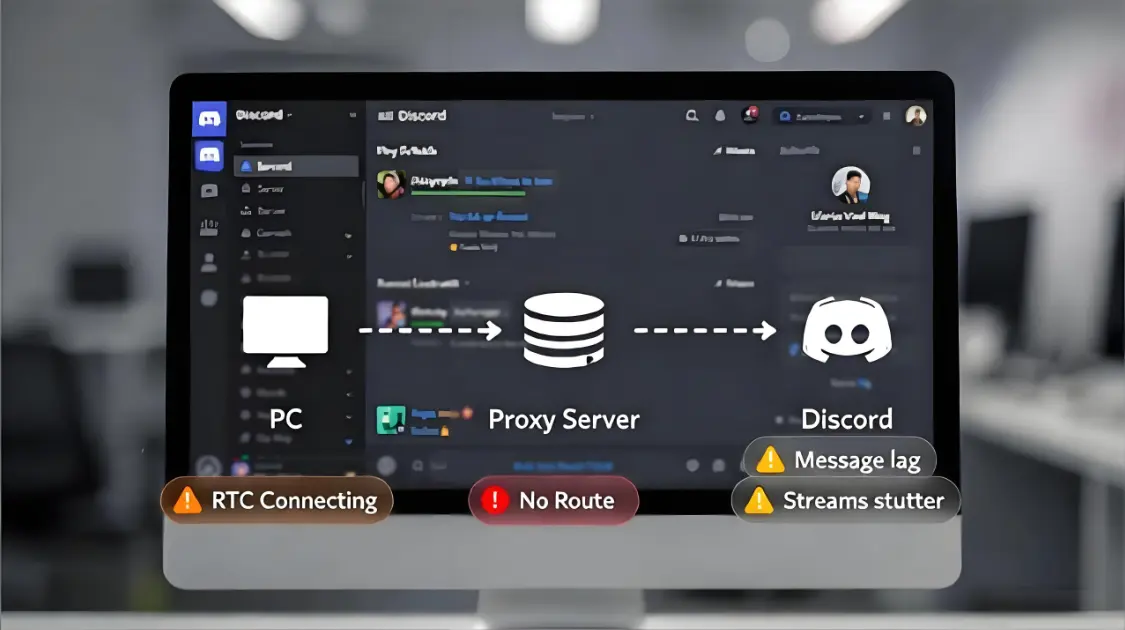
Discord works until it doesn’t. You can load servers and text channels, but voice sits on RTC Connecting. Or the client connects, then messages arrive late, streams stutter, and the desktop app drops at random.
When a proxy is involved, these aren’t “mystery Discord issues.” They’re routing and transport problems that can be tested. Endpoint formats, auth patterns, and region naming are often the first place users misconfigure things, so keeping a canonical reference page for that information prevents the guide from going stale: Discord proxy endpoint format and region mapping reference.
If you want a proxy setup that actually stays stable, follow the steps below and verify each change as you go.
- Choose a proxy that matches a legitimate scenario
- Configure Discord on web, OS-level, and desktop
- Verify the proxy is in use with evidence
- Troubleshoot failures by symptom with measurable checkpoints
Quick Start
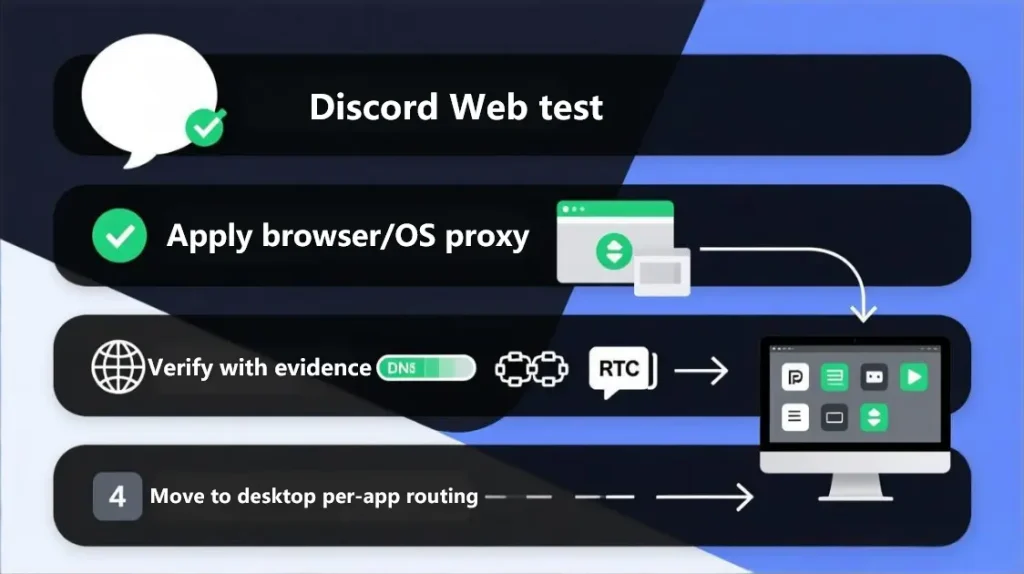
- Use Discord Web first so the routing surface is limited to the browser and OS proxy stack.
- Apply the proxy at the browser level or OS level (avoid stacking layers while diagnosing).
- Prove the route with three checks: public IP, process connections, and DNS + RTC behavior.
- Move to the desktop app only after web is stable for 10 minutes.
Symptoms index
- Discord proxy not working
- Discord stuck on Connecting
- Discord voice RTC Connecting
- Discord voice No Route
- Captcha and verification loop
- Message lag and presence delays
- Frequent disconnects
- Region mismatch and inconsistent location signals
Compliance boundaries
- Proxies should be used in ways that comply with Discord’s Terms of Service, local law, and organizational policies.
- This guide focuses on stability, privacy hygiene, and legitimate testing workflows rather than bypassing enforcement.
What is a Discord proxy
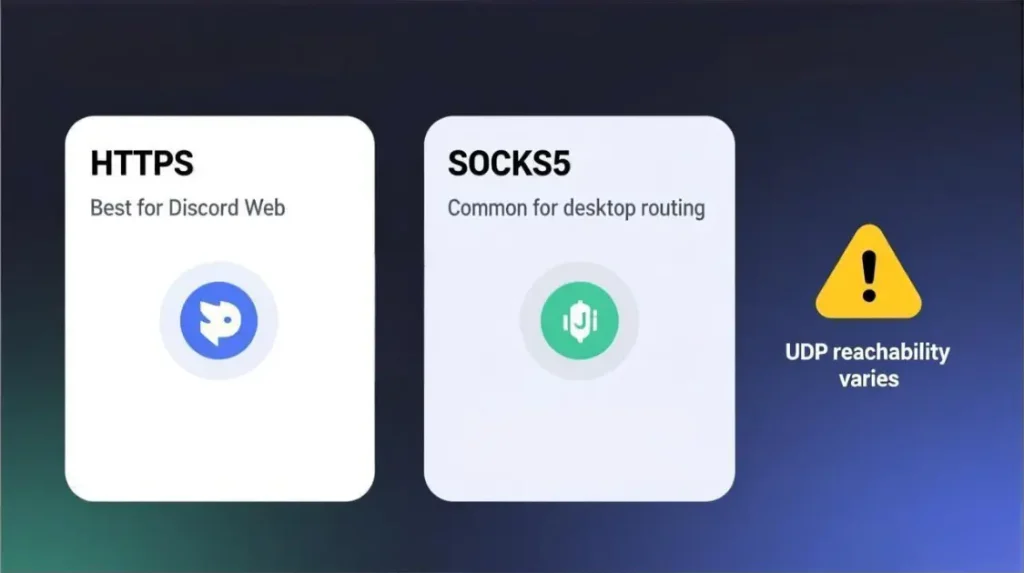
A Discord proxy is a proxy server (HTTPS or SOCKS5) that routes some or all Discord traffic through another IP address. It can support privacy, controlled routing, and testing, but it can also break voice if UDP is blocked or unstable.
Fastest safe setup
- Use Discord Web first.
- Configure an HTTPS or SOCKS5 proxy at the browser or OS level.
- Verify routing using IP checks, process connections, and DNS + RTC checks.
- Route the desktop app through a per-app tool only after web is stable.
Proxy types for Discord
| Proxy type | Best for | Common limit |
|---|---|---|
| HTTPS proxy | Discord Web and simple routing | No UDP, voice may fail |
| SOCKS5 proxy | Desktop apps and flexible routing | UDP support varies by provider and tool |
| Residential IPs | Privacy and “normal” IP reputation | Rotation can break sessions |
| Static proxies | Stable identity and fewer re-checks | Higher cost, limited locations |
| Datacenter IPs | Dev and QA testing | Higher verification friction on some ranges |
How Discord traffic works
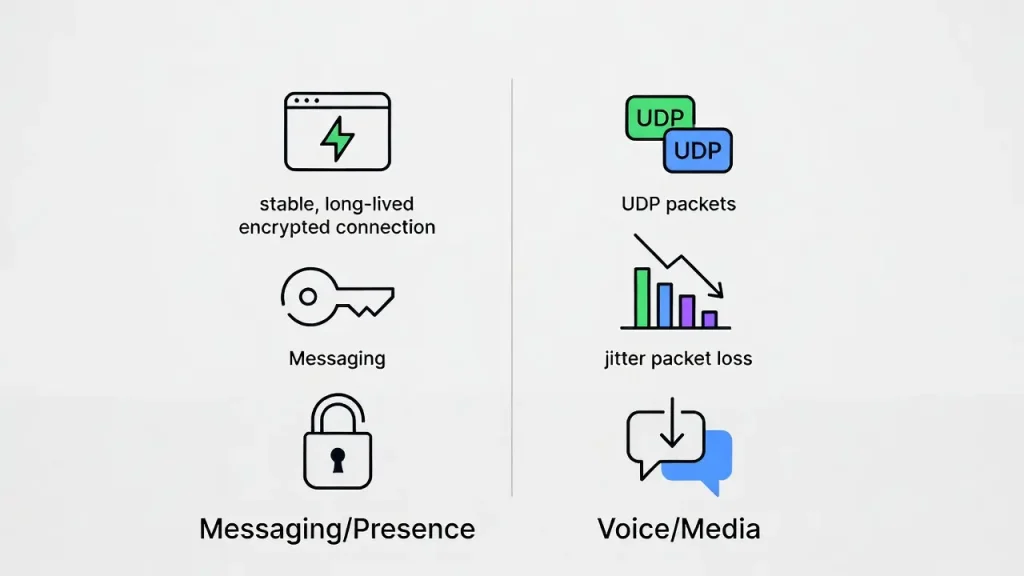
Discord is not “just a website.” Different features take different network paths, and proxies affect those paths differently. If you only remember one thing, remember this: text can look “fine” on a proxy while voice fails completely, because voice is far more sensitive to UDP reachability and jitter.
Messaging, presence, and long-lived sessions
Text, presence, and many real-time events rely on long-lived encrypted connections and frequent small payloads. Proxies that kill idle sessions, enforce short timeouts, or overload under concurrency can cause reconnect loops and delayed events.
Voice uses a different path and fails first
Discord’s voice stack has its own setup flow and its own failure labels. Discord documents RTC Connecting and No Route as voice connection error states in its help center guide, and these labels map closely to proxy-related failures caused by routing interference, firewall restrictions, or unstable paths: Discord Voice Connection Errors.
At the protocol level, Discord’s developer documentation describes how a voice connection is established, including the voice server handshake and voice connection behavior: Discord Developer Docs: Voice Connections.
Why a proxy can make latency worse
A proxy adds a hop and often adds variability. For real-time voice, jitter and packet loss matter more than average ping. A route that looks fine for web browsing can still degrade voice badly if the egress is congested or the UDP path is inconsistent.
Proxy selection matrix
Instead of “best proxy,” use scenario-fit. This matrix is designed to stop most wrong purchases before they happen.
| Scenario | Primary goal | Better fit | Typical mismatch |
|---|---|---|---|
| Personal privacy | Hide home IP and keep stable sessions | SOCKS5 or HTTPS with stable IP | Free proxies, aggressive rotation |
| Corporate or campus networks | Allowed routing and predictability | Approved gateway or permitted route | Covert routing workarounds that violate policy |
| Travel and region routing | Consistent location and stable identity | Static proxies near destination | Country hopping, frequent IP changes |
| Compliant separation for multiple identities | Isolation and repeatability | One identity per static IP plus separate profiles | Rotating per request, shared fingerprints |
| Developer QA and testing | Reproducible environments | Datacenter or static ISP routing | Residential rotation that changes variables |
HTTPS and SOCKS5 differ in authentication, DNS behavior, and typical client support, which is why the protocol behavior summary matters when troubleshooting split routing: Protocol behavior and client support differences.
Stable-session decision points
Account stability is usually harmed by rotating IPs while Discord is active and by switching regions frequently enough to look like a different environment every session.
Residential routing is often chosen when the goal is stable sessions with consumer-like egress characteristics: Residential routing for more consistent Discord sessions.
Static routing is often chosen when the goal is preventing the session from moving underneath the client during long-lived connections: Static IP routing for long-lived Discord identity. MaskProxy is commonly used in workflows where keeping a consistent endpoint per session is the operational priority.
HTTPS vs SOCKS5 for Discord
Protocol choice is less about “security” and more about routing support and how Discord is being used.
HTTPS proxy
HTTPS proxies are easy to apply to browsers and some OS stacks. They’re often sufficient for Discord Web when voice stability is not critical. Voice failures become more likely when the environment requires UDP stability that the chosen proxy path doesn’t sustain.
SOCKS5 proxy
SOCKS5 is the common choice for desktop routing tools because it handles a wider range of application connection patterns. UDP support exists conceptually in SOCKS5, but in practice it depends on the provider and the routing tool, so it should be validated in the environment rather than assumed.
SOCKS5 endpoints used for desktop routing are described here: SOCKS5 endpoints for desktop routing workflows. MaskProxy provides SOCKS5 endpoints intended for application-level routing.
Discord proxy setup in a browser
Discord Web is the cleanest starting point because the browser offers a well-defined proxy stack and a controlled set of variables.
- Apply the proxy in the browser or OS settings.
- Sign in to Discord Web and open a few channels.
- Keep the session open for 10 minutes to observe whether it stays stable.
- Run the verification methods below before changing anything else.
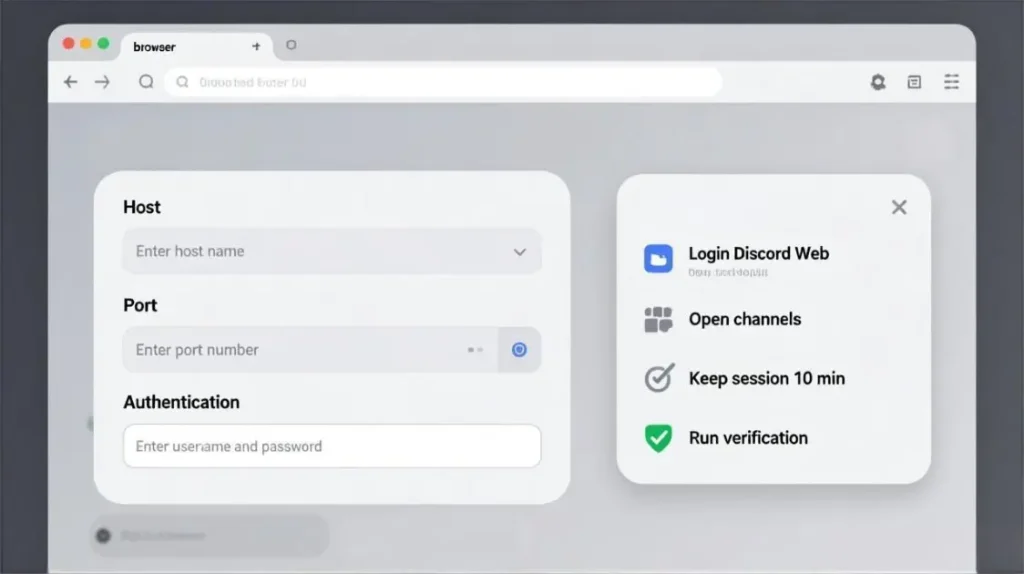
A Discord-specific endpoint format and region mapping is typically maintained on a single internal page that stays current without rewriting the main guide. Keep that page bookmarked so you don’t “half-fix” issues by retyping endpoints inconsistently.
Discord proxy setup on Windows
Windows proxy settings are straightforward for HTTP and HTTPS use cases. SOCKS5 support varies by application, which is why desktop Discord is commonly routed with a per-app tool when SOCKS5 is required.
Practical rule:
- Discord Web: Windows proxy settings can be sufficient.
- Discord desktop: per-app routing is usually more predictable and easier to verify.
Discord proxy setup on macOS
macOS allows HTTPS and SOCKS proxy configuration per network interface. A separate network location profile with the proxy disabled keeps troubleshooting reversible and reduces accidental always-on proxying.
Discord desktop proxy setup with Proxifier
Discord desktop does not provide a built-in proxy toggle, so per-app routing is the standard approach.
Proxifier documents how proxy servers are configured and how application rules route traffic through those proxies: Proxifier proxy configuration guide and Proxifier rules reference.
DNS behavior can determine whether region mismatch or leakage occurs, and Proxifier documents name resolution modes that route hostname resolution through the proxy when needed: Proxifier DNS and name-resolution modes.
Minimal per-app routing configuration:
- Add a proxy server in the routing tool.
- Set name resolution mode appropriately when DNS needs to follow the proxy route.
- Create a rule that matches the Discord executable and routes through the proxy.
- Keep OS-level proxy disabled if the per-app tool is responsible for the route.
Verify the proxy is actually in use
A good setup produces evidence. A bad setup produces “it feels like it might be working.”
Method 1: Public IP check
- Quit Discord fully, including the tray process.
- Enable proxy routing.
- Confirm the public IP changes and remains consistent across refreshes.
- Disable proxy and confirm it reverts.
This proves the outward identity changed. It does not prove the Discord process is routed correctly.
Method 2: Process-level proof on Windows
Resource Monitor can show whether Discord.exe is connecting to the proxy IP and port when per-app routing is enabled. Seeing Discord.exe establish the proxy connection is stronger evidence than an IP website alone, especially when split routing is possible.
Method 3: Packet capture for TCP and UDP
A capture answers two questions quickly:
- Are the TCP connections going to the proxy endpoint or directly to Discord infrastructure?
- Is there UDP activity when joining voice, and does it receive replies?
When voice is stuck at RTC Connecting or shows No Route, treat the label as a routing clue, then validate with capture or reachability tests instead of changing multiple variables at once.
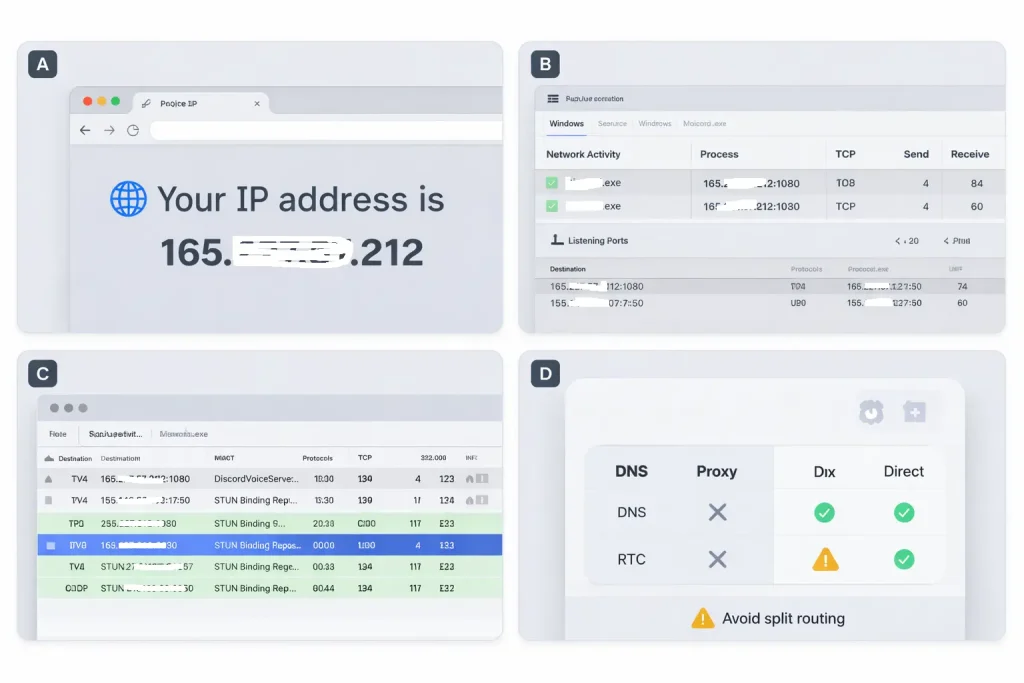
Method 4: DNS and RTC behavior checks
If DNS resolution remains local while TCP is proxied, location behavior becomes inconsistent. If RTC behavior exposes local network details, privacy and region consistency degrade.
Troubleshooting by symptom
Each fix starts with a testable hypothesis and a single variable change.
Discord proxy not working
Likely causes:
- proxy configuration not applied to the Discord traffic path
- wrong protocol for the client
- DNS resolving locally while the TCP route is proxied
Fix sequence:
- Validate public IP change.
- Confirm Discord.exe connects to the proxy endpoint under per-app routing.
- Remove double-routing variables by keeping only one routing layer responsible for Discord traffic.
Discord stuck on Connecting
Likely causes:
- unstable proxy endpoint or overloaded egress
- reconnect loops caused by short timeouts
- TLS interception policies on restricted networks
Fix sequence:
- Test Discord Web under the same proxy path.
- Keep region constant while swapping only the endpoint to isolate capacity or reputation differences.
- Run a 10-minute idle stability test to observe disconnect behavior.
Discord voice RTC Connecting
Likely causes:
- UDP blocked by the network
- high jitter or packet loss on the proxy route
- proxy path that cannot sustain the media flow
Fix sequence:
- Test voice without proxy on the same network to isolate network policy.
- Capture traffic and confirm whether UDP is present and receiving replies.
- If UDP is blocked, the route must be permitted and capable rather than repeatedly changed.
Discord voice No Route
Likely causes:
- firewall rules blocking required traffic
- NAT behavior that prevents the media path from forming
- proxy egress that cannot reach voice infrastructure reliably
Fix sequence:
- Try a different network to rule out local firewall rules.
- Validate whether the proxy region introduces routing blackholes.
- Compare Discord Web and desktop behavior to narrow the failing layer.
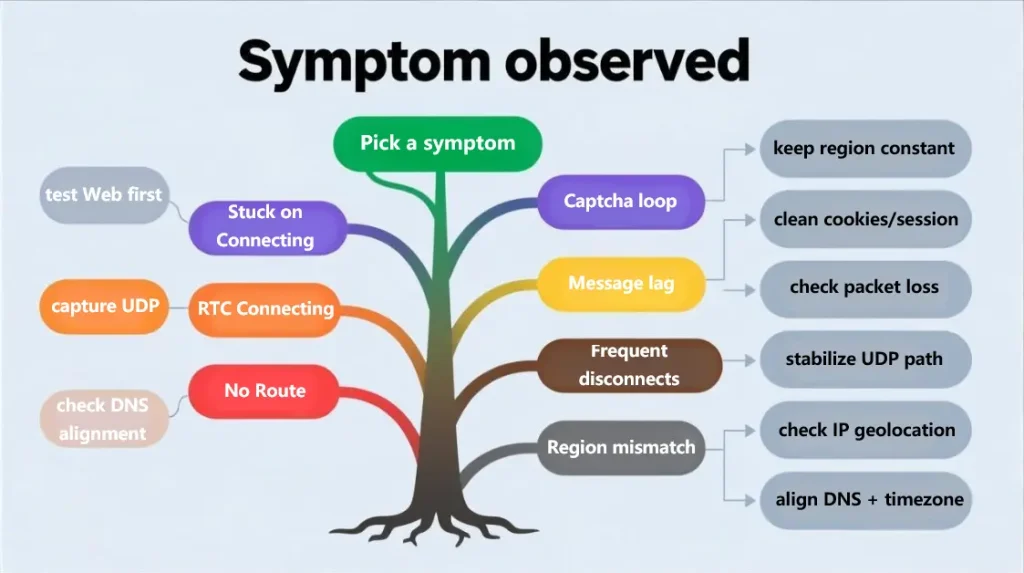
Captcha and verification loop
Likely causes:
- IP reputation issues
- location inconsistency created by rotation or unstable sessions
- frequent reconnects
Fix sequence:
- Keep one stable route per session rather than rotating mid-session.
- Keep region consistent over time.
- Separate identities into different stable routes when isolation is required.
Message lag and presence delays
Likely causes:
- proxy congestion or path stretch
- reconnect loops on long-lived sessions
Fix sequence:
- Compare RTT and jitter to the proxy endpoint vs direct.
- Switch to a closer region with lower jitter, holding other variables constant.
- Avoid saturating shared exits during peak time where possible.
Frequent disconnects
Likely causes:
- idle timeouts on the proxy
- session expiry or rotation
- mobile NAT churn
Fix sequence:
- Prefer sticky sessions and stable endpoints for long-lived usage.
- Keep routing variables stable during troubleshooting.
Region mismatch and inconsistent location signals
Likely causes:
- DNS resolution not aligned with the proxy route
- split routing where some traffic bypasses the proxy
- browser RTC behavior exposing local network details
Fix sequence:
- Validate DNS behavior under the proxy configuration.
- Ensure per-app routing rules match the Discord process.
- Avoid mixing OS-level proxy with per-app routing unless intentionally designed.
Security and privacy considerations
- Free proxies are commonly abused and unstable, and they introduce meaningful risks for credentials and traffic integrity.
- Proxy authentication should use per-user credentials or controlled allowlists.
- Any proxy provider can observe metadata such as timing and destination patterns, so logging policy and operational integrity matter.
Provider evaluation checklist for Discord
- Connection stability under long-lived sessions
- Jitter and packet loss characteristics on the route
- Sticky session controls and predictable expiration
- Region and city availability where consistency matters
- IP quality and reputation history
- Clear concurrency limits
- Support responsiveness for routing issues
A stable-session provider choice is mainly about predictability and low jitter rather than headline speed. MaskProxy is commonly used where the routing objective is stable sessions with predictable proxy endpoints.

Daniel Harris is a Content Manager and Full-Stack SEO Specialist with 7+ years of hands-on experience across content strategy and technical SEO. He writes about proxy usage in everyday workflows, including SEO checks, ad previews, pricing scans, and multi-account work. He’s drawn to systems that stay consistent over time and writing that stays calm, concrete, and readable. Outside work, Daniel is usually exploring new tools, outlining future pieces, or getting lost in a long book.
FAQ
1. Will a proxy automatically cause enforcement on Discord?
A proxy alone is not a guarantee of enforcement, but unstable routing, reputation issues, and policy-violating behavior increase risk.
2. What is the best protocol for Discord desktop?
SOCKS5 is commonly used with per-app routing tools; UDP behavior still needs validation in real usage.
3. Why does Discord Web work but desktop fails?
Web inherits the browser proxy stack, while desktop requires OS-level or per-app routing and is more sensitive to DNS and session behavior.
4. Why do verification prompts increase after switching proxies?
IP reputation and location inconsistency are common triggers, especially when routes change during active sessions.
5. Do static IPs help?
Stable routing typically reduces friction compared to frequent IP changes, especially for long-lived usage patterns.
6. Can Discord be routed without proxying the entire system?
Yes, per-app rules can route only Discord traffic.
7. Why does voice fail when a proxy is enabled?
Voice is sensitive to UDP reachability and jitter, and many proxy paths do not sustain the media flow.
8. How can routing be proven?
Public IP checks, process-level connections, and packet capture provide evidence of the actual path.
9. Why can region look inconsistent even when the public IP changes?
DNS can resolve locally or traffic can be split; aligning DNS behavior with the proxy route is often required.
10. Should IPs rotate frequently for safety?
Frequent rotation increases session churn and verification friction; stability is usually safer operationally.