This article explains how to use MaskProxy in Android. System-level proxy will affect applications that use system proxy settings; if an application has an independent proxy entry, it needs to be configured separately within the application.
Step 1: Prepare proxy parameters in the MaskProxy dashboard
- Log in to the MaskProxy dashboard.
- Enter "My Proxy" and open the product you want to use: rotating residential proxy, rotating datacenter proxy, static residential proxy or static datacenter proxy.
- Copy proxy host, port, username and password.
- Select HTTP or SOCKS5 protocol based on tool support.
- Dynamic proxy first confirms the remaining GB traffic; static proxy first confirms that the IP status is normal and has not expired.
Android usually requires these four parameters: host, port, username, and password. If the tool only accepts one line of proxy, the following general format can be used.
username:password@host:portStep 2: Fill in proxy in Android
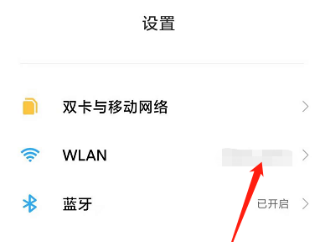
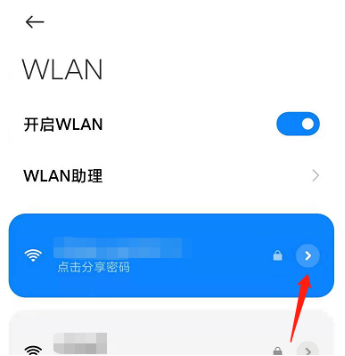
- Open Wi-Fi settings and enter the advanced settings of the current network.
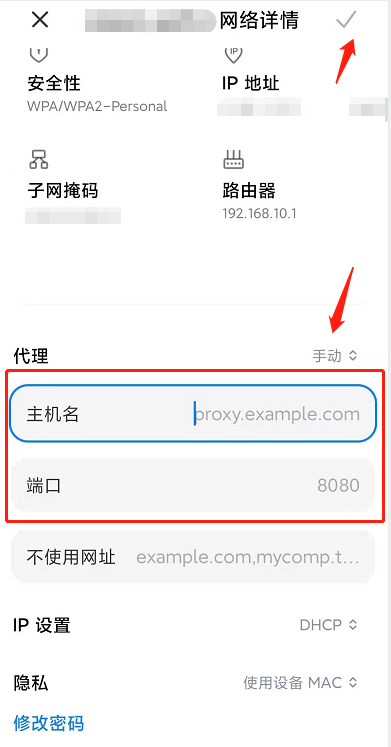
- Change proxy settings to manual configuration.
- Fill in the proxy host and port of the MaskProxy background.
- If the system or application requires a username and password, fill in the proxy credentials copied in the background.
- After saving, open the browser or IP query page to test.
Different Android versions and manufacturer systems have different support for account and password proxy. If the system settings cannot save the user name and password, it is recommended to use a proxy manager or browser that supports authentication instead.
Step 3: Test connection
- Click "Test proxy" "Check proxy" in Android or save and open the IP query page.
- Confirm that the exit IP is different from the real IP of the machine.
- Confirm that the export region is generally consistent with the background selection.
- If it is a dynamic proxy, observe whether the IP switching meets the current time limit when making multiple requests; if it is a static proxy, confirm that the exit IP remains stable.
Common troubleshooting
- Connection failure: Check whether the host and port are complete, and only fill in numbers for the port.
- Authentication failed: Copy the username and password again, avoiding extra spaces or line breaks.
- Protocol Error: Confirm that the HTTP or SOCKS5 protocol was selected in the tool and not another protocol type.
- Region inconsistency: Use multiple IP query sites for cross-validation.
- The dynamic proxy cannot be used: check the remaining GB traffic; the static proxy cannot be used: check the IP status and expiration time.
Please only use proxy in compliance business scenarios, and comply with the usage rules of the target website, platform and third-party tools. Do not send the complete proxy string, password or API link to public channels.
Interface reference picture
The following screenshots are from the Chinese interface or Chinese tutorial sources and are used to help locate menus and fields; the actual interface may change with the software version.