After registering and logging in to the MaskProxy account, you can enter the MaskProxy dashboard to purchase proxy packages, generate proxy parameters, view orders, and manage account security settings. This tutorial will follow the real page process to explain the complete operation from registration, email verification code to logging into the console.
What you need to prepare before registering
- A mailbox that can receive emails normally to receive verification codes and subsequent account notifications.
- A secure password, it is recommended to use a combination of letters, numbers and symbols to avoid duplication with other websites.
- If you plan to use Google to log in, you can also select the Google authorization portal on the registration or login page.
Open the MaskProxy registration page
Enter MaskProxy registration page, the user registration form will be displayed on the right side of the page. You need to fill in your email address, password, confirmation password and verification code in sequence.
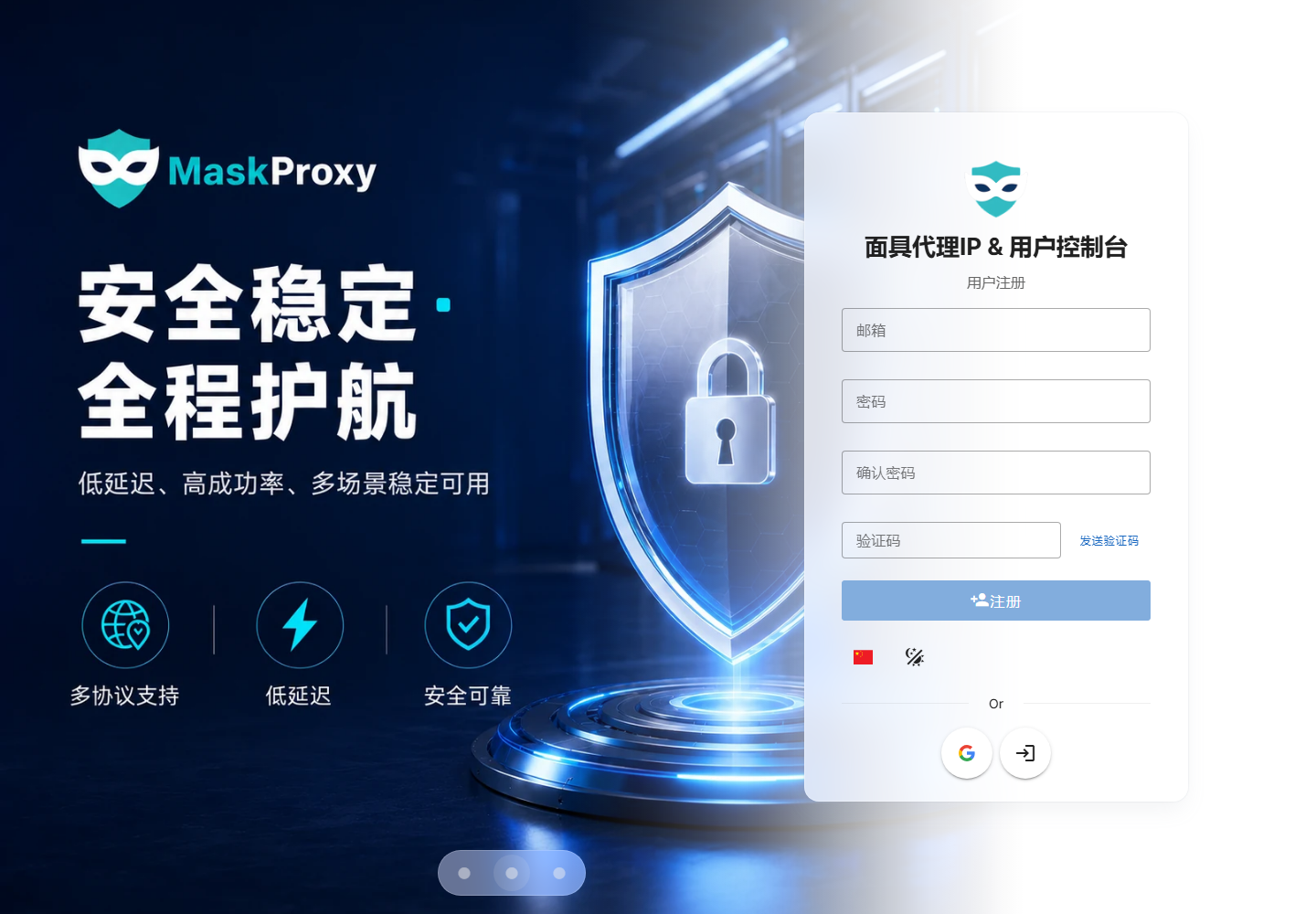
Fill in the registration information
- Fill in your commonly used email in the email input box.
- Set the login password in the password input box, and enter the same password again in the confirm password.
- Click "Send Verification Code", and then check your mailbox for the verification code email.
- Fill the received verification code into the verification code input box.
- After confirming that the information is correct, click "Register" to create an account.
If you do not receive the verification code for a long time, you can first check whether the spam email, email blocking rules and the entered email address are correct, and then resend the verification code.
Complete email verification
After the verification code is passed, the system will complete the account creation. Subsequent logins, password retrieval, order notifications and security reminders will all rely on this email address, so it is recommended to use an email address that is accessible for a long time.
Log in to the MaskProxy console
After the account is created, open MaskProxy login page, enter the registration email and password, and then click "Login". If you use Google authorization, you can also click the Google icon at the bottom of the page to continue logging in.
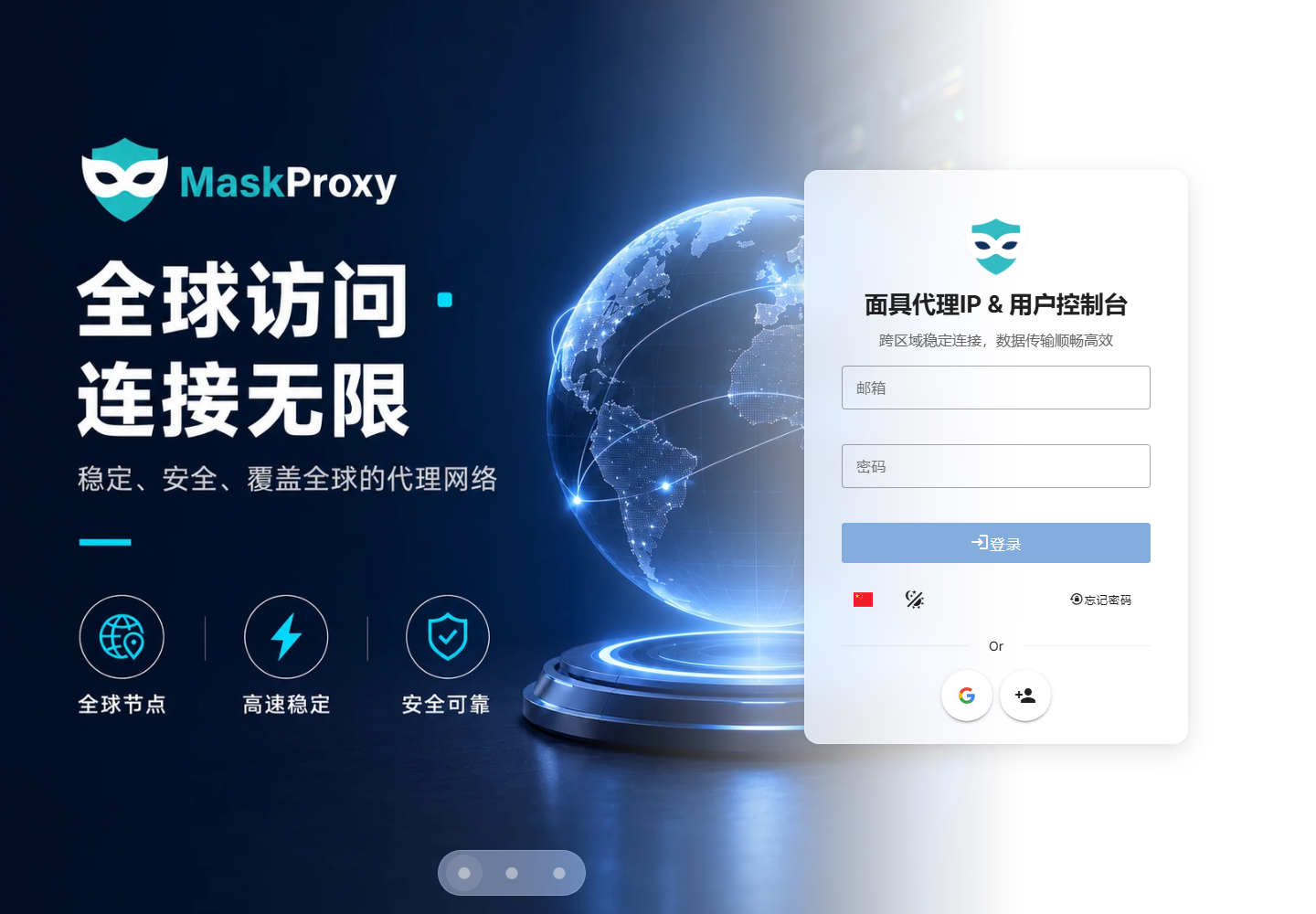
What you can do after logging in
- Enter the MaskProxy dashboard to view account information and current service status.
- Purchase or renew residential proxy, datacenter proxy and other products.
- Generate proxy host, port, account, password or API extraction link.
- View orders, balances, coupons and promotion plan related information.
FAQ Troubleshooting
What should I do if I cannot receive the verification code?
First check the spam and mailbox blocking rules to make sure there are no spelling errors in the email address. If you still don't receive it, you can wait for a while and resend the verification code.
What should I do if the password is incorrect?
Please confirm whether the capitalization, spaces and input method status are correct. If you still cannot log in, you can click "Forgot Password" on the login page to reset your password.
Can I log in with Google?
Yes. Both the registration page and the login page provide access to Google authorization. When using a third-party login, please ensure that the browser can open the Google authorization page normally.
What should I do if I do not enter the console after registration?
You can manually open the login page and log in again. If the page stays for a long time or loads abnormally, it is recommended to refresh the page or change the browser and try again.
Next step suggestions
After completing the registration and login, it is recommended to continue reading proxy Product Description and Proxy Configuration Parameter Descriptionto confirm the proxy type you need and learn how to obtain the connection parameters.