Undetectable.io is a common fingerprint browser tool. After configuring MaskProxy to Undetectable.io, the browser configuration file can access the target website through the specified proxy exit, which is suitable for scenarios such as account environment isolation, regional access testing, and multi-configuration file management.
Applicable scenarios
- Want to use different proxy outlets in different browser profiles of Undetectable.io.
- You need to fill in MaskProxy’s dynamic home, dynamic datacenter, static home or static datacenter proxy into the fingerprint browser.
- Need to check proxy connectivity and egress IP before creating configuration file.
Before you begin
- Installed and logged into Undetectable.io.
- The proxy package has been purchased from MaskProxy dashboard.
- You have entered "My Proxy" and copied the proxy host, port, username and password.
- Confirm the protocol to be used, usually you can select HTTP or SOCKS5 protocol according to software support.
Step 1: Open proxy or profile settings
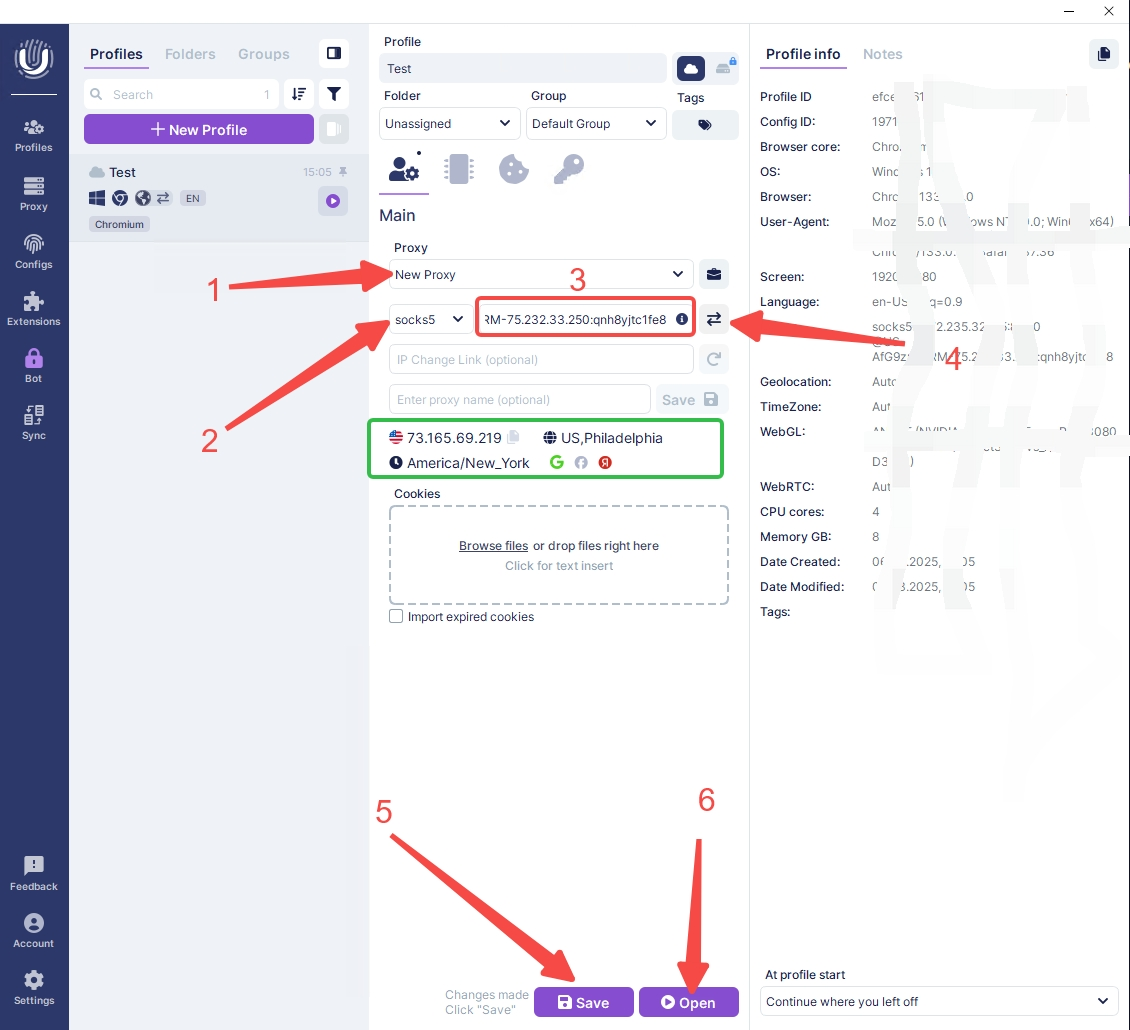
Create a new browser profile in Undetectable.io, or edit an existing profile. Find proxy settings, Proxy, Connection, Network or similar entries. The menu names of different versions may be slightly different, but the core is to enter the proxy parameter filling area of the current browser configuration file.
Step 2: Select the proxy protocol
Select the HTTP or SOCKS5 protocol in Undetectable.io based on the parameters displayed in the MaskProxy dashboard. SOCKS5 here is a connection protocol, not a separate product type; purchase and management are still based on the four types of proxy products in the MaskProxy backend.
Step 3: Fill in the MaskProxy parameters
- Host / Server:Fill in the proxy host displayed in the MaskProxy dashboard.
- Port:Fill in the corresponding port.
- Username:Fill in the proxy username.
- Password:Fill in the proxy password.
Please copy the background parameters directly to avoid extra spaces or missing characters when entering manually. The proxy password and the official website login password are not the same information.
Step 4: Test proxy connection
Before saving, give priority to using the proxy testing function that comes with Undetectable.io. If the software prompts that the connection is successful, start the browser configuration file and access the IP query website to confirm that the exit IP is consistent with the expected region.
Step 5: Save and start the configuration file
Save the configuration file after passing the test. Before official use, it is recommended to open a test page to confirm whether the access speed, region identification, DNS, browser time zone and other environmental information meet your business requirements.
FAQ
- Test failed:Copy the host, port, username and password again, and confirm that the protocol is selected correctly.
- The background can copy parameters but the software cannot connect:First test the proxy using the command line or a normal browser, and then check the configuration items of Undetectable.io.
- IP region is inconsistent:The databases of different query websites may be different. You can change the region or re-extract the dynamic proxy and test again.
- Access is very slow after configuration:Reduce concurrency, change the target region or switch proxy type for testing.
Usage recommendations
Try to use a clear name for each browser configuration file, such as "MaskProxy-Country-Purpose". If you reset the MaskProxy credentials, the old password saved in Undetectable.io also needs to be updated simultaneously.